Review rules
A discount for a Google review: what is allowed and what is not
Why you cannot reward reviews or ask only happy customers, how to ask for a review the right way and where to get the Google link and QR code.
Updated
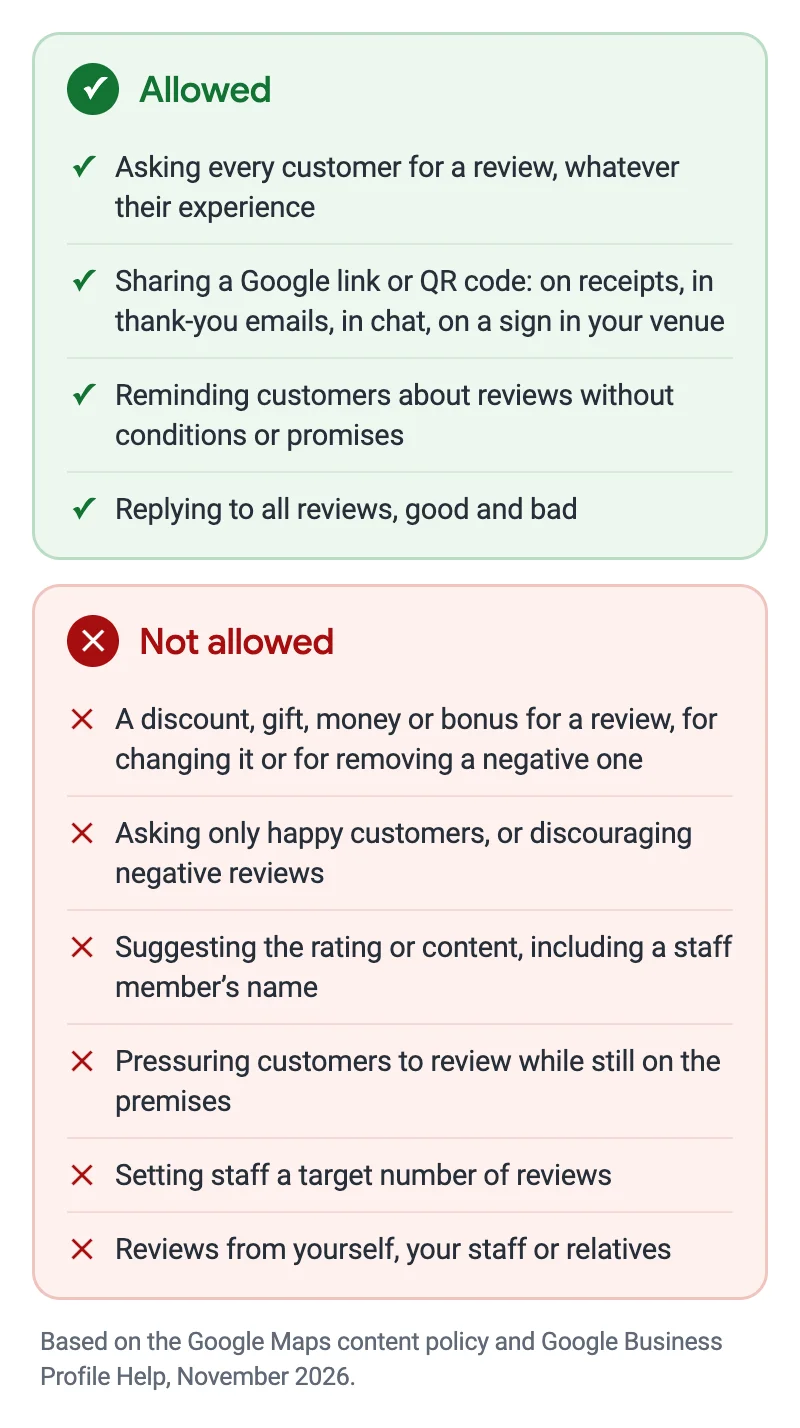
No, you cannot give a discount, gift or bonus for a Google review, even for an honest one and even without asking for five stars. Google Maps policies also prohibit asking only happy customers for reviews, suggesting the rating and setting staff review targets. You can ask every customer for a review, share a Google link or QR code and remind people. For violations, Google removes the reviews and may restrict the profile.
What Google allows and what it does not
Google’s core rule: you may ask for reviews, but not influence the rating or content. In its words, merchants may “solicit or encourage the posting of content that does represent a genuine experience, without offering incentives to do so or attempting to influence the rating or the contents of the review.”
Can you give a discount for a review?
No. Google Business Profile Help says: “Offering incentives, like free or discounted goods or services, in exchange for customers to post reviews, change reviews, or remove negative reviews is considered fake & misleading content and is strictly prohibited.”
Any benefit for the reviewer counts, not only money. Typical cases:
- a discount on the next visit “for a review”, even if the rating does not matter;
- a coffee, dessert or free service when the customer shows the published review;
- entry into a prize draw for those who left a review;
- compensation for a problem in exchange for changing or deleting a negative review.
If you want to compensate a customer for a real problem, do it separately and do not tie it to the review.
Why you cannot ask only happy customers
Under Google Maps policies, merchants may not: “Discourage or prohibit negative reviews, or selectively solicit positive reviews from customers.”
The most common filtering scheme is a short survey before the review: “Did you enjoy everything?” Those who answer “yes” get the Google link, those who answer “no” get an internal complaint form. Asking only regulars you know to be happy is the same thing.
Google also explains why mixed reviews help: “A mix of positive and negative feedback often feels more trustworthy.”
How to ask for a review the right way
Ask everyone the same way, without conditions and without hints about the rating. For example:
Thank you for visiting. If you have a minute, tell others about your visit on Google: every review matters to us.
A demonstration example of an invitation.
These requests break the rules:
- “Give us five stars.”
- “Mention that Olena served you.”
- “Show your review at the till and get a coffee.”
A QR code sign in your venue is allowed: Google itself suggests displaying the QR code in your store. What is prohibited is different: merchants “should not require or pressure users to leave ratings or write reviews while on the premises”. So do not stand over customers while they write, and do not ask to see the review.
Where to get the Google review link and QR code
The review link and QR code come from your Business Profile itself. The QR code can only be created in a computer browser.
- Go to your Business Profile.
- Select “Read reviews”, then “Get more reviews”.
- To copy the link, select the copy icon.
- To download the QR code, right-click it and select “Save image as…”.
Google suggests adding the link or QR code to receipts, thank-you emails and the end of chat conversations, and printing the QR code for your venue. You can also send review requests by email, WhatsApp message or Facebook post. Customers must be signed in to a Google Account to leave a review.
A print-ready sign with your location’s QR code can be made in the MapsReply QR studio: how to collect genuine reviews with a QR code.
Staff: no targets and no prompts
Google’s policies name two prohibited practices: “Merchants requesting that staff solicit a certain number of reviews” and “Merchants requesting that staff solicit reviews that include specific content, including content that identifies a staff member.” A bonus for the number of reviews or a “who collects more” contest fall here too.
Reviews from the owner, employees, former employees and relatives are prohibited as well: Google treats them as content based on a conflict of interest. Staff can remind every customer about reviews but must not write them themselves.
What happens if you break the rules
Google removes reviews obtained for a reward or in breach of its policies. It may also restrict the Business Profile. Examples Google gives:
- the profile cannot receive new reviews or ratings for a set period;
- existing reviews or ratings are unpublished for a set period;
- customers see a warning on the profile that fake reviews were removed.
Google notifies the owner by email about a restriction, and the decision can be appealed.
More about MapsReply · What to do with a negative review
Frequently asked questions
Can I give a discount for an honest review without asking for five stars?
No. Google prohibits any reward for a review, whatever the rating and text.
Can I run a prize draw among customers who left a review?
No. A prize draw entry is also a benefit for the reviewer, so the review counts as incentivised.
Can I put a QR code sign at the till or on tables?
Yes. Google itself suggests printing and displaying the QR code in your venue. Just do not pressure customers or suggest a rating.
Can I ask friends and relatives to write a review?
No. Google treats reviews from relatives, employees and the owner as a conflict of interest.
Can I send customers a review request?
Yes, if every customer gets it, not only happy ones, and without a promised reward. Google mentions email, WhatsApp and Facebook.
Sources
- Prohibited & restricted content, Maps user-generated content policy.
- Tips to get more reviews, Google Business Profile Help.
- Create a Google link or QR code to request reviews, Google Business Profile Help.
- Business Profile restrictions for policy violations, Google Business Profile Help.
- Incentivized or Biased Reviews, Maps user-generated content policy.
The rules and button names were checked against Google’s help on 5 November 2026. This article explains Google’s policies and is not legal advice.